
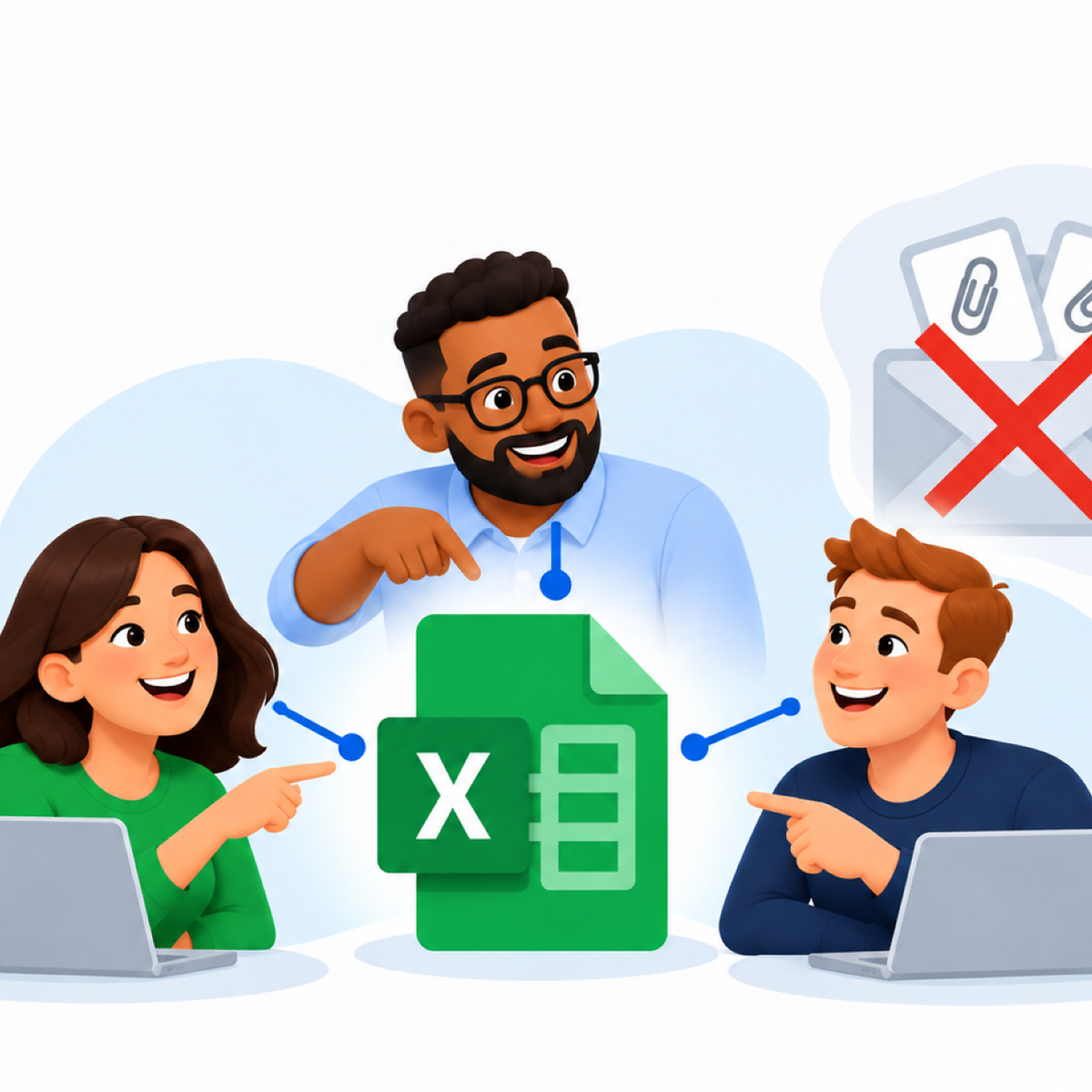
When your team shares spreadsheet data through email attachments, you may notice:
- Multiple versions of the same spreadsheet exist, making it unclear which attachment contains the latest information.
- Changes get lost or overwritten because employees update separate copies of the workbook.
- Employees spend time reconciling files and copying changes from one attachment into another.
- People make decisions using outdated information because an older attachment is still in their inbox.
Share one Excel file with your team
Similar to Google Docs, OneDrive or SharePoint allows your team to view and edit one shared Excel workbook instead of exchanging email attachments. Everyone uses the same file, so changes are in one place.
Follow these six steps, using a version of Excel that supports collaborative editing.
See my YouTube video for a demonstration: https://youtu.be/H9SL4cTvZIc
|
|
Step |
Notes |
|
1 |
Save to OneDrive or SharePoint |
Save or upload the workbook to OneDrive or a SharePoint Online document library. Wait for uploading to finish. |
|
2 |
Open the shared file |
Open that cloud file in Excel. On Mac or Windows, turn AutoSave on. |
|
3 |
Optionally, choose access permissions |
Select Share, choose the recipients, and set Can view or Can edit. |
|
4 |
Optionally, send a link |
Copy the sharing link and send it by email or chat. Send the link, not an email attachment. |
|
5 |
Open in Excel |
Recipients can open the file directly from the shared drive or by using the link in a supported Excel app or browser. |
|
6 |
Work together |
Stay connected to the internet for live collaboration, and check that changes are saved before closing. |
Device and platform differences
The process is similar across devices, but the available features differ. Use Microsoft 365 Excel on computers and the Excel app on phones or tablets. Mobile editing may require a subscription, depending on the device and use. Microsoft recommends mobile apps for iPhone and iPad and does not officially support Android browsers for Microsoft 365 on the web.
|
Platform |
Differences |
|
Windows |
Use Microsoft 365 Excel or a supported browser. Desktop Excel supports VBA macros; the browser does not. |
|
macOS |
Use Microsoft 365 Excel or a supported browser. Desktop Excel supports VBA, but Windows-specific macros may need changes. |
|
iPhone/iPad |
Use the Excel app on iPhone or iPad. Some desktop features are unavailable; VBA macros do not run. |
|
Android |
Use the Excel app on phones or tablets. Some desktop features are unavailable; VBA macros do not run. |
Keep these points in mind
- Edit the cloud file. Editing a downloaded or separate local copy does not update the shared workbook. Open the shared cloud file whenever you need to make changes.
- Check permissions: viewing allows reading; editing allows changes to the shared file.
- Test complex workbooks: sharing does not make every desktop feature work on mobile or in a browser. See Microsoft’s mobile file limitations, browser macro guidance, and Mac VBA guidance.
Questions: contact us
See Microsoft’s sharing guide for additional information.
See Microsoft’s browser guidance.