- Using the Excel Share feature to share an Excel file
- Generating Barcodes using the Avery website
- Barcodes not displaying in Excel
- SKUs and Barcodes contain invalid characters
- How to clear out scanned IN and OUT transactions and maintain current inventory levels.
- Printing labels on a Windows computer
- Printing labels on any computer
- Check that Excel autofill is turned OFF to speed up scanning
- Select Clear Print Area to avoid Excel thinking you want to print page 1 each time
Using the Excel Share feature to share an Excel file
Follow these steps (method 1) to share a .xlsm or .xlsx file. See the alternative steps (method 2) below if you only have a .xlsx file.
Method 1
- Locate the spreadsheet on your computer

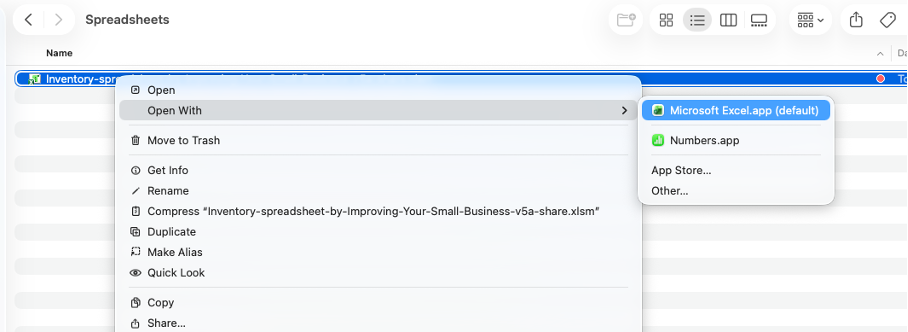
- Drag a copy of the file to the destination cloud drive (e.g., OneDrive). This preserves the .xlsm file extension.

- Open the share drive copy with Excel
- Select the Share, then Copy Link buttons
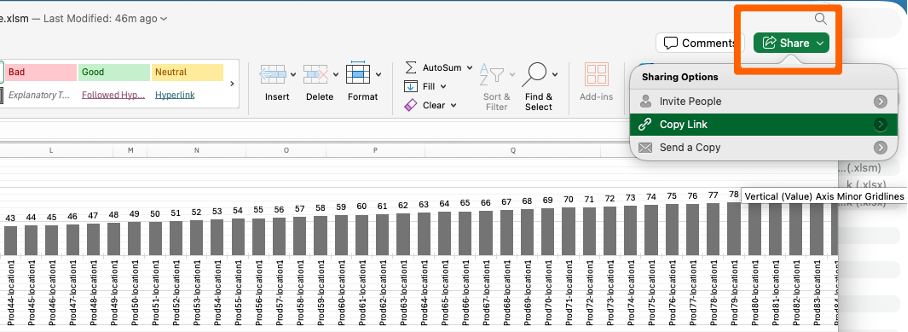
- Select View and Edit or View-Only
- Paste the copied link into a browser. Anyone with the link can see the spreadsheet.
- The file displayed in the browser and can be edited. You can scan in and out of either copy (lap top file or browser view). In the browser view the "search column A" function does not work because macros don’t work in a browser.
Method 2
Follow these steps to share a .xlsx file (does not work for .xlsxm files)
- Select the Share, then Move button. (Excel moves the file to the share drive).
- Select Manage Access to set permissions on who can see the shared file.
- Select the Share, then Copy Link buttons.
- Select View and Edit or View-Only
- Paste the link into a browser. Anyone with the link can see the spreadsheet.
- The file displayed in the browser and can be edited.
Generating Barcodes using the Avery website
If you want an alternative way to generate barcodes, see the tab in spreadsheet called "Avery Website Instructions." The sheet includes instructions for http://app.print.avery.com
Barcodes not displaying in Excel
If your barcodes are not displaying, make sure you have downloaded and installed the free barcode font.
https://www.idautomation.com/free-barcode-products/code39-font/
And install via:
https://www.idautomation.com/barcode-fonts/installation-procedures/
Double-click on the file "IDAutomationHC39M Free Version.ttf” and it will install.
You will need to quit Excel and go back in. Then the barcodes should display.
SKU and Barcodes contain invalid characters
SKUs cannot include spaces, or the characters @, #, &, or !
Use a hyphen (-) if a separator is needed. In version 4a of the spreadsheet (and newer versions) the SKU cell will go red if it contains an invalid character. If these characters are in the SKU, then the barcode will skip them, and the SKU will not match the barcode.
How to clear out scanned IN and OUT transactions and maintain current inventory levels.
See the instructions at the bottom of the scan IN and OUT table.
Printing labels on a Windows computer
You might need to adjust the column widths if you are using a Windows machine. These label sheets were created on a Mac, and your Excel version might layout labels slightly differently, even with the same settings.
If so, follow the steps below OR use the Avery website to generate barcodes ( see the tab in this file called "Avery Website Instructions")
- Save the file and make a copy before you edit anything!
- Look at these items:
- Column width: The width of the label and space columns (between labels). Make small adjustments and test by printing on plain paper and holding up against a label sheet.
- Top margin on the Page Setup menu. If the labels are not vertically aligned with the label sheet, adjust the top margin a little to push them up or down.
- Row height: Only adjust row height if the vertical space between the labels does not match the label sheet. Adjusting the row height can cause large shifts in vertical alignment. Make small adjustments and test.
Printing labels on any computer
When you want to print a page of barcodes, select one whole page of cells to print, even if some of the cells are blank. That way, the print spacing is maintained for the page. For example, if you have 7 barcodes to print, select all the rows for a full label sheet; otherwise, the labels will not be spaced correctly.
Note that Avery label sheets do not have equal top and bottom margins, so if the barcodes miss the labels, feed the sheet in the opposite direction.

Check that Excel autofill is turned OFF to speed up scanning
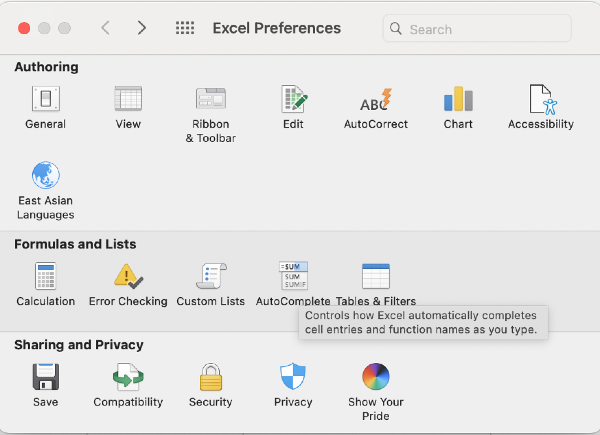
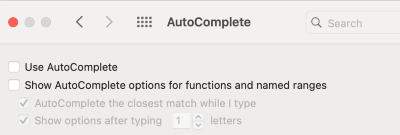
If autofill is turned on, then Excel will keep looking for previously typed entries and this will slow scanning.
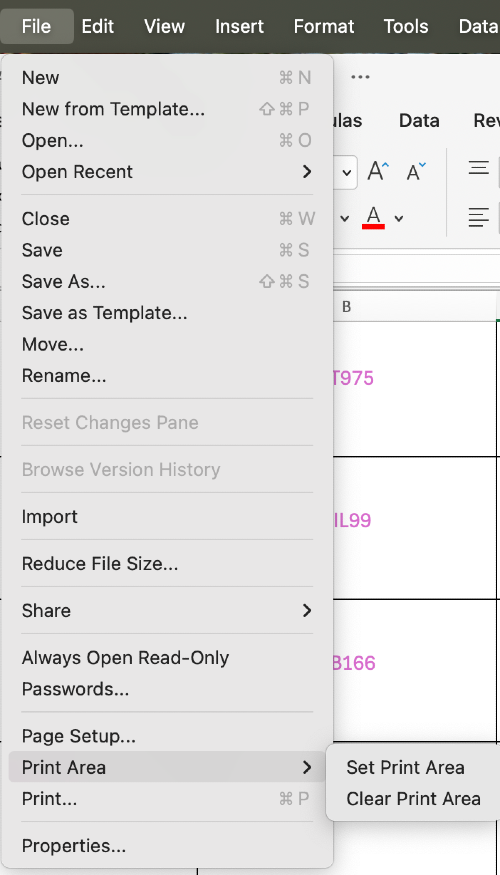
Select File->Excel Preferences->AutoComplete->unselect the checkmarks (see the two figures below)
Select Clear Print Area to avoid Excel thinking you want to print page 1 each time
If you have more than one page of barcodes, then do a Clear Print Area to tell Excel that you will manually select the rows to print.
Select File->Print Area->Clear Print Area
You will always print with "Selection" on the print menu after selecting the page of barcodes to print